
When you hit the play button on your timeline, and the video freezes, stutters, or drops frames, your computer is trying to tell you something. Usually, it is screaming for more memory. RAM (Random Access Memory) is the workspace your computer uses to handle active tasks. In the world of video production, having enough system RAM is the difference between a smooth creative flow and hours of frustration.
So, how much RAM for video editing do you actually need?
If you want the short answer: 32 GB is the ideal amount for most video editing projects. According to data from TuneReel, this covers the minimum requirements for popular software, supports 4K video editing, and allows you to run heavy-duty background software like Adobe After Effects or Cinema 4D without crashing your system.
However, your specific needs might vary based on your video resolution, the video editing software you prefer, and your budget. This guide breaks down exactly what you need to build a lag-free editing machine.
Why RAM Matters for Video Editors
Before looking at the numbers, it helps to understand what RAM does. Imagine your computer’s hard drive is a filing cabinet where you store all your footage. System RAM is your desk. When you edit, you pull footage from the filing cabinet (drive) and put it on the desk (RAM) to work on it.
If your desk is small (8 GB), you can only look at a few clips at once. If you try to open more, things fall off the desk, and you waste time picking them up (this is your computer “swapping” memory to the hard disk, which kills rendering speed). If you have a massive desk (64 GB), you can spread out 4K video, open 50 browser tabs, and run Photoshop all at the same time.
Neat Blog highlights that RAM requirements are influenced by several factors, including your frame size (FHD, UHD, 8K), the complexity of your project (effects and plug-ins), and your Operating System (macOS vs. Windows).
RAM Breakdown by Resolution and Project Type
The resolution of your footage is the single biggest factor in determining your memory needs. Higher resolution means more pixels, which requires more space in your RAM to cache frames for playback smoothness.
8 GB: The Absolute Bare Minimum
Is 8GB RAM enough for video editing? Technically, yes, but barely.
- Best For: 720p HD or lower quality, simple cuts, rookie projects.
- Performance: You will experience lag. You must close all background programs (like Chrome, Spotify, or Dropbox) to free up resources.
- Verdict: As noted by Veedyou, 8 GB is outdated for 1080p editing with modern codecs. It is limiting and often frustrating. Only use this if you are on a strict budget and editing simple family videos.
16 GB: The Entry-Level Standard
For many years, 16 GB was the gold standard. Today, it is the baseline for decent performance.
- Best For: 1080p video editing, some 4K video (mostly 8-bit), and projects beyond the rookie phase.
- Performance: It offers the best performance-to-cost ratio for beginners. You can edit Full HD projects comfortably. However, if you start adding heavy effects or using AI tools, the system will slow down.
- Verdict: This is “workable” for smaller projects but will feel slower as you advance to more complex timelines.
32 GB: The Professional Sweet Spot
If you are asking, “What is the ideal RAM for 4K video editing?” the answer is 32 GB.
- Best For: Most video editing workflows, 4K resolution, heavy-duty editing, and multitasking.
- Performance: This amount allows you to keep background programs open. You can run Adobe Premiere Pro and send a clip to Adobe After Effects without your computer freezing. It handles the “sweet spot” for professional editing (4+ years experience), YouTube channels, and client work.
- Verdict: This is likely all you will ever need unless you are working on Hollywood-level productions.
64 GB and Higher: The Power User
For those pushing the boundaries of resolution and color science, 64 GB is the territory of high-end workstations.
- Best For: 8K video editing, 10-bit bit depth, RAW footage, heavy VFX, and complex motion graphics.
- Performance: This creates a massive buffer for your system. It is necessary for power users running multiple demanding applications simultaneously or dealing with Cinema 4D renders.
- Verdict: If you edit 8K or do heavy compositing daily, this investment ensures your workflow never hits a bottleneck.
Detailed RAM Comparison Table
Below is a breakdown of memory requirements based on data from TuneReel, Neat Blog, and Veedyou.
| RAM Amount | Video Quality / Project Type | Application / Use Case |
|---|---|---|
| 8 GB | 720p HD or lower; basic editing | Minimum for basic editing work. Background programs should be closed; outdated for modern 1080p workflows |
| 16 GB | 1080p; some 4K (8-bit) | Suitable for demanding projects beyond the beginner stage; workable but slower with AI tools or 4K footage |
| 32 GB | 4K video; heavy-duty editing | Ideal for most editing tasks; handles background software and heavy compositing efficiently (professional sweet spot) |
| 64 GB | 8K video; up to 10-bit color depth | Designed for very demanding projects, including complex VFX, AI-driven workflows, and multi-camera editing |
Software Specific Requirements
Different video editing software engines manage memory differently. Adobe Premiere Pro is known for being memory-hungry, while DaVinci Resolve relies heavily on your GPU but still demands significant system RAM for its Fusion (VFX) tab.
Adobe Premiere Pro RAM Needs
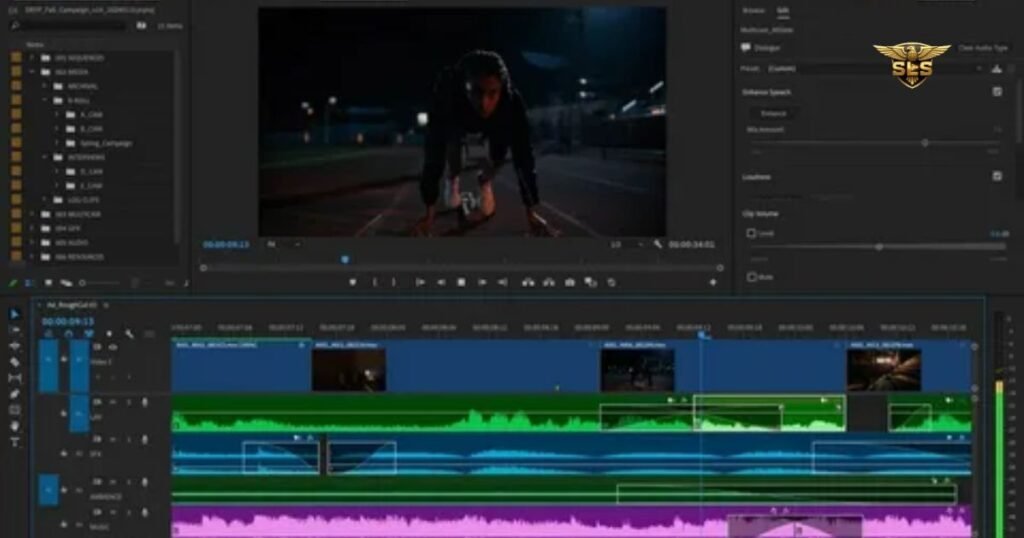
Adobe’s architecture benefits significantly from more RAM. According to Adobe’s site data referenced by Veedyou and Neat Blog:
- Minimum: 8 GB (only for basic work).
- Recommended for 1080p HD: 16 GB.
- Recommended for 4K: 32 GB.
- Heavy Compositing / AI Workflows: 64 GB.
Premiere Pro allows you to reserve RAM specifically for Adobe apps. If you have 32 GB, you can allocate 26 GB just for Premiere, ensuring smooth playback even with complex timelines.
DaVinci Resolve RAM Needs
DaVinci Resolve is unique because it integrates editing, color correction, and VFX (Fusion) in one app.
- Windows Minimum: 16 GB is the starting point.
- macOS Minimum: 8 GB is technically supported.
- Fusion (VFX) Requirements: If you use Fusion for effects, Neat Blog recommends 32 GB for Windows users and 16 GB for macOS users.
Operating System: Windows vs. macOS
The operating system plays a massive role in how far your RAM goes.
- Windows 11: Generally requires more overhead. Neat Blog lists 4 GB as the OS minimum, but realistically, the OS consumes a chunk of your available RAM before you even open an editing app.
- macOS (e.g., Sonoma): Macs, especially those with Apple Silicon (M1/M2/M3 chips), use “Unified Memory.” This architecture is highly efficient. As noted in the data, 8 GB on a Mac often feels like 16 GB on a Windows PC. However, for UHD/Fusion work, higher RAM is still required.
Factors That Increase RAM Usage
Why does one 4K project run smoothly on 16 GB while another stutters? It comes down to complexity.
1. Modern Codecs (H.265 / HVEC)
Modern cameras compress video to save hard disk space. Codecs like H.265 (HVEC) are highly compressed. To edit them, your CPU must decompress them in real-time, storing the decoded frames in RAM. This process is intensive and eats up memory faster than older codecs like ProRes or DNxHD.
2. AI Tools and Plug-ins
Features like “Scene Edit Detection,” “Auto Reframe,” or Neat Video noise reduction use Artificial Intelligence. Veedyou points out that these AI tools significantly impact RAM usage. If you rely on these automated features to speed up your workflow, you cannot stick to the minimum specs.
3. Multitasking
Ideally, you should close everything else when editing. Realistically, nobody does that. You likely have a web browser open to find music, an email client, and maybe Photoshop for thumbnails.
- The Browser Factor: A Chrome browser with 10 tabs open can easily consume 2 GB to 4 GB of RAM.
- The Impact: If you have 16 GB of RAM and your OS + Browser takes 6 GB, you only have 10 GB left for your video editor. This is why 32 GB is safer—it gives you “headroom.”
4. Bit Depth (8-bit vs. 10-bit)
Most standard cameras shoot in 8-bit color. Professional cameras shoot 10-bit, which contains billions more colors.
- 8-bit: Manageable with 16 GB.
- 10-bit: Requires significantly more memory for buffering. TuneReel specifically notes that 64 GB is recommended for projects involving 10-bit bit depth.
Frame Size Memory Multiplier
It is important to understand the math behind the pixels.
- UHD (3840×2160): This requires roughly 4x the memory of FHD (1920×1080).
- 8K (7680×4320): This requires 4x the memory of UHD.
This exponential growth is why jumping from 1080p to 4K is a major hardware upgrade, often requiring you to double your RAM capacity.
Step-by-Step: How to Monitor Your RAM Usage
If you are unsure if you need an upgrade, check your current usage while editing.
For Windows Users:
- Open your video editing project and start working.
- Press Ctrl + Shift + Esc to open Task Manager.
- Click the Performance tab and select Memory.
- Look at the “In Use” and “Available” graphs. If your memory usage consistently hits 85-90%, your RAM is bottlenecking your system performance.
For macOS Users:
- Open your project.
- Press Cmd + Space, type “Activity Monitor,” and press Enter.
- Click the Memory tab.
- Look at the “Memory Pressure” graph at the bottom. Green is good. Yellow means you are pushing the limits. Red means you desperately need more RAM.
If you want to make a good video, contact us. https://sarmadlalistudios.com/
FAQ: How Much RAM for Video Editing
Is 8GB RAM enough for video editing?
Only for the absolute basics. 8 GB is sufficient for cutting 720p HD video or simple 1080p home movies. However, you must close all other applications. For modern editing with effects, it is generally considered outdated and limiting.
Is 16GB RAM enough for video editing?
Yes, for most entry-level and intermediate users. It is the best performance-to-cost ratio for 1080p video editing and can handle simple 4K projects. However, it will be slower if you use AI tools or complex color grading.
Is 32GB RAM enough for video editing?
Yes, 32 GB is the “sweet spot” for professional video editors. It handles 4K video, allows for multitasking with background programs, and supports complex timelines in Adobe Premiere Pro and After Effects.
How does video resolution affect RAM requirements?
Higher resolution equals more data per frame. UHD (4K) requires roughly four times the memory of FHD (1080p). 8K requires four times the memory of UHD. As resolution increases, your RAM requirement skyrockets.
What is the distinction between RAM and VRAM?
System RAM is your computer’s general short-term memory used by the CPU to run the OS and applications. VRAM is memory located on your GPU (graphics card) specifically for graphics processing. While VRAM handles the rendering of images on screen, System RAM manages the overall application data and timeline buffering.
Should I close other programs while video editing to save RAM?
Yes. Web browsers, music players, and cloud sync apps eat up RAM. If you are on a system with 8 GB or 16 GB of RAM, closing these creates more space for your editing software, improving playback smoothness.
Also ask: What Do YouTubers Use for Video Editing? The 2026 Creator Toolkit
Conclusion: How Much RAM for Video Editing
Choosing the right amount of RAM doesn’t have to be a guessing game. It comes down to your project type and your budget.
If you are just starting and editing 1080p clips for Instagram or TikTok, 16 GB will serve you well and save you money. However, if you are building a workstation for the future, plan to edit 4K video, or want to use professional tools like After Effects alongside Premiere Pro, 32 GB is the definitive choice.
For the elite few working with 8K, 10-bit color, or massive VFX scenes, 64 GB is not a luxury—it is a necessity.
Don’t let a slow computer kill your creativity. Assess your current usage, check your budget, and upgrade to the memory capacity that lets you focus on the edit, not the lag.